Pages

Subscribe:

Tuesday, 6 March 2018


HOW TO PROTECT OUR COMPUTER FROM HACKER                                       AND MALWARE


                                       Image result for how to protect your computer from hackers 


Don't get caught in an online scam pretending to be tech support for your computer that actually infects your machine with a virus. We'll show you how to protect your computer from malware.


8 Tips to Protect Your Computer From Viruses and Malware
It may be a new year, but an old scam is making the rounds of online computer users.

The FBI recently issued a warning about a computer scam that starts on the telephone: You get a call from someone claiming to work for a “major software company.” (Hmm…wonder which one?) They tell you your computer is sending error messages to them over the Web, and they’ve detected a virus. No problem, however: All you have to do is pay them a fee and they’ll remotely fix your computer by installing anti-virus software on it.
Once the caller has your credit card number and access to your computer, they don’t remove viruses, however – they install them.
In October, the Federal Trade Commission cracked down on a similar scam that charged computer users from $49 to $450 to “remove” malware from their computers. The agency estimated “tens of thousands” of computer users fell prey to that scam.
The way to defeat these scams is simple enough – don’t give strangers your credit card numbers or access to your computer. But let’s take a look at eight additional ways you can protect yourself from viruses and malware:

1. Keep your software up to date

Software makers like Microsoft and Oracle routinely update their software to fix bugs that could potentially be exploited by hackers. Oracle just released on Sunday an update to its Java software to fix a security hole hackers could have used to infect computers with malware.
The software patch came after the Department of Homeland Security sent out an advisory late last week about the security flaw recommending computer users disable the Java plug-in in their Web browsers.

2. Don’t click on links within emails

A good rule of thumb is if you don’t recognize a sender of an email, don’t click on any links within it. Microsoft says 44.8 percent of Windows virus infections happen because the computer user clicked on something.

3. Use free antivirus software

You don’t have to pay for software to protect your computer or for an annual subscription to maintain the latest virus protection. For Windows users, Microsoft Security Essentials is free. Avast is another free anti-virus program.
See our story Antivirus Software is a Waste of Money for more ideas.

4. Back up your computer

Do you regularly back up the information on your computer? If you don’t – and 29 percent of computer users fall into that category – you have no protection from calamites ranging from hard drive failure to your house burning down. If you value your data, back it up.
You have three basic backup options: an external hard drive, online backup service, or cloud storage. Use a service like Google Drive, and your files will be continually backed up to the cloud. And the price is right: free for up to 5 GB of data. For more, see Online Storage Wars: Which Virtual Storage Is Best?

5. Use a strong password

strong password is one that is complex, with a mix of letters, numbers, and symbols. While some people use the same password for everything, try to avoid that practice.
Password security company SplashData.com says the three most common passwords are password, 123456, and 12345678. The company recommends avoiding using the same user name/password combination for multiple online site logins.
When creating a password, use eight characters or more and, to make them easier to remember, try using short phrases separated by spaces or underscore marks – such as “car_park_city?”
Best idea? Use a free service like LastPass to create and manage your passwords. You only have to remember one password: the one that opens your LastPass vault. Once you’ve opened it, LastPass will automatically log you in to every site you visit requiring a password. It’s really handy – check it out.

6. Use a firewall

Just because you have antivirus software running doesn’t mean you have a firewall. Both PCs and Macs come with built-in firewall software. Be sure to check that it’s enabled.

7. Minimize downloads

Make sure your Web browser’s security settings are high enough to detect unauthorized downloads. For Internet Explorer, the medium security setting is the minimum level to use.

8. Use a pop-up blocker

Web browsers have the ability to stop pop-up windows and allow you to set the security for accepting pop-ups. The federal OnGuardOnline site recommends never clicking on links within pop-up screens.
Even the most vigilant of computer users still run the risk of picking up malware. You should suspect a computer virus if your machine slows down, crashes, or repeats error messages.
Other clues include the computer failing to promptly shut down or restart, new toolbars you didn’t install, a changing home page, or a laptop battery draining faster than it should.
If you suspect your computer is infected, make sure your security software is updated, then scan the computer. If that doesn’t solve the problem, try typing a question into your favorite search engine to uncover forums where others might describe fighting and winning similar battles.
Bottom line? These days protecting yourself from viruses and lost data is much easier than it used to be and doesn’t have to cost a dime. Take a few minutes today to make sure you’re protected. You’ll be glad you did.


   HOW TO CREATE USING POWERPOINT 


                                           Image result for picture animation


Animate text or objects


You can animate the text, pictures, shapes, tables, SmartArt graphics, and other objects in your PowerPoint presentation to give them visual effects, including entrances, exits, changes in size or color, and even movement. Build a slide presentation that animates bullet points or even production credits.
(After you start playing the video, you can click the sizing arrow Click the sizing arrow at the bottom right of the video frame to enlarge the video at the bottom right of the video frame to enlarge the video.)
4:05
Animation is a great way to emphasize a point, control information flow, and increase viewer interest. You can apply animation effects on individual slides, the slide master, or custom slide layouts.
For related information, see Make word appear one line at a time.


Apply an animation

  1. Select the object or text on the slide that you want to animate.
    An "object" in this context is any thing on a slide, such as a picture, a chart, or a text box. Sizing handles appear around an object when you select it on the slide. (For animation purposes, a paragraph within a text box is also an object, but it won't have sizing handles when you select it; instead the entire text box has sizing handles.)
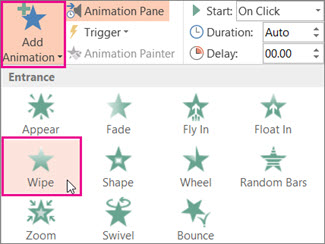
  2. On the Animations tab of the ribbon, click Add Animation, and pick an animation effect.
    Add an animation effect in PowerPoint
    To make sure that animations play when you present your slide show, make sure that when you go to Slide show > Set Up Slide Show that the Show without animation box is cleared. If this box is checked, animations will show when you preview your slide show, but not when you present it.
To apply additional animation effects to the same object, see Apply multiple animation  effects to one object, or to add a motion path, see Add a motion path animation effect.
Some entrance and exit effects (such as Flip, Drop, and Whip) and some emphasis effects (such as Brush Color and Wave) are available only for objects that contain text. If you want to apply an animation effect that isn't available for this reason, try adding a space character inside your object.

3D animation effects

Office 365 subscribers can add animation effects to 3D objects:
  • Arrive or Leave
  • Turntable and Swing
  • Jump & Turn
Duration: 58 seconds

Change the speed of the animation effect

The speed of the effect is determined by the Duration setting.
  1. On the slide, select the animation effect that you want to change.
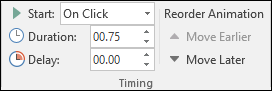
  2. On the Animations tab, under Timing options, in the Duration box, enter the number seconds that you want the animation effect to last.
    Timing options for animations in PowerPoint
    (Maximum: 59 seconds. Minimum: .01 seconds. You can type a duration or use the up or down arrows to select a standard incremental value.)

Change how the animation effect starts

  1. On the slide, select the animation effect that you want to change.
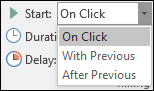
  2. On the Animations tab, under Timing options, open the Start list, and choose one of the three options described below:
    To start the animation effect
    Select
    When you click the slide
    On Click
    At the same time as the previous animation effect in the list. (One click starts two or more animation effects at the same time.)
    With Previous
    Immediately after the previous animation effect in the list finishes playing. (No additional click is required to make this animation effect start.)
    After Previous
    Start options for animations in PowerPoint

Set the time between animation effects

The Delay option determines how much time elapses before a specific animation effect begins—either after you click or after a prior animation effect concludes.

Change the order of the animation effects on a slide

To reorder a set of animations on a slide:
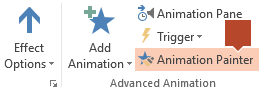
  1. Open the Animation pane: On the Animations tab, in the Advanced Animation group, select Animation Pane.
  2. In the Animation pane, select the animation effect that you want to reorder.
  3. On the Animations tab of the ribbon, in the Timing group, under Reorder Animation select one of these options:
    Timing options for animations in PowerPoint
    • Select Move Earlier to move the effect up one place in the animation order.
    • Select Move Later to move the effect down one place in the animation order.
    You can select an option multiple times, if necessary, to move your selected effect to the appropriate place in the animation order.

Remove an animation effect

When you animate an object (such as a bullet point or a picture), a small numeral appears just to the left of that object. This numeral indicates the presence of an animation effect and its place in the sequence of animations on the current slide.
To remove an animation
  1. Select the numeral of the animation that you want to remove.
  2. Press the Delete key on your keyboard.
For a more complete discussion, see Change or remove an animation effect.

Copy animation effects from one object to another

Avoid having to manually animate several objects in the same way: Use the Animation Painter to copy animations from one object to another. For full details and a quick video demonstration, see Duplicate animations with the Animation Painter.
The Animation Painter is available on the Animation toolbar ribbon when something animated is selected on a slide

Animation demonstration

For a five-minute video that shows a lot of animation features, see Training: Add animations to slides.

More about animating text and objects

There are four different types of animation effects:
  • Entrance effects make an object fade gradually into focus, fly onto the slide from an edge, or bounce into view.
  • Exit effects include making an object fly off of the slide, disappear from view, or spiral off of the slide.
  • Emphasis effects include making an object shrink or grow in size, change color, or spin on its center.
  • You can use Motion Paths to make an object move up or down, left or right, or in a star or circular pattern (among other effects). You also can draw your own motion path.
You can use any animation by itself, or combine multiple effects. For instance, to make a line of text fly in while it grows, apply a Fly In entrance effect and a Grow/Shrink emphasis effect to it. Click Add Animation to add effects, and use the Animation Pane to set the emphasis effect to occur With Previous.
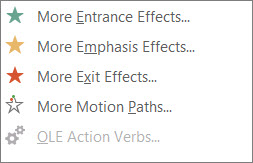
The gallery of animation effects on the Animations tab shows only the most popular effects. Get even more possibilities by clicking Add Animation, scrolling down, and clicking More Entrance EffectsMore Emphasis EffectsMore Exit Effects, or More Motion Paths.
More animation effects in PowerPoint

Transitions and animations

In PowerPoint, animations are not the same as transitions. A transition animates the way one slide changes to the next. To add a transition, see Add, change, or remove transitions between slides.


                                                 PROGRAMMING INFORMATION


                                         Image result for programing information

1. Educational Benefits 

The elementary schools use computers for testing and other activities, but it is a rare school curriculum that includes any computer programming. In the YEAR OF CODE many schools across the world started including a computer programming skills segment to the school day. This type of education helps kids to learn the basic inner workings of computers. Kids can feel successful at getting a computer to do what they tell it to do. This foundation can set kids up for a lifetime of successful use and management of the technology in their everyday lives.

2. Computational Thinking 

Computational thinking is the ability to communicate your thoughts in a structured and logical way. This type of thought process is like the step by step instructions that are coded into a computer. It is also the process of thinking up and then solving problems in a methodical way that could be replicated by a machine. Software engineers, computer programmers, and logistics specialists use this method of thinking to solve problems. Computational thinking is a combination of advanced mathematics, algorithm development and logic. The development of computational thinking involves considering a problem and breaking it down into single-action steps. Each of these steps is handled in the most efficient way possible. There is also an element of abstraction in computational thinking, which allows your child to move from a specific solution to a specific problem and generalize it to other situations. The result is a paradigm shift in thinking about how the world works.

3. Creativity, Thinking Fluidity 

Children have creative and fluid minds that allow them to think in a more “out of the box” way. The nearly endless ways of coding and solving problems can inspire kids to grow. You can show your child that coding is a type of storytelling. There is a logical beginning, progression, and ending to the story and the program. These skills can set kids up for success in written and oral communications in school and thankfully the introduction of IT basics in primary schools is rightly becoming widespread.

4. Job Opportunities  

The current generation of children will need to be literate in technology in order to be competitive in the future job market. Not knowing how to code will be comparable to not knowing how to read. Most jobs require the knowledge of basic IT skills, while even retail and fast food jobs require the use of technology and computers. Coding specialists are well-paid and highly sought-after on the current market, and opportunities for these skilled employees will expand in the future.

The Learning Process, Possibilities, And Results Of The Benefits 

Just like learning how to ride a bike, learning how to code is easier when you are young. Even four year old children can learn the basic concepts of computing. Learning how to code is getting easier and more interesting as there are more and more new types of software and updated instructional methods that keep kids interested and excited about computer programming. There are also online resources to help kids learn how to code, even for free, such as the popularCodecademy. Kids will not have to spend hours studying the specifics of coding. Instead, they can use  games and apps to help teach them the basics of computer coding.
These benefits of learning programming at a young age helps kids to gain advantages in thinking, processing and communicating. These skills will later help kids to be innovative, which will translate into nearly any profession. From physicians to musicians, being able to program and develop computer apps and software can translate into success.


  MEMANAH


Image result for memanah


Agama Islam tidak pernah melarang umatnya melibatkan diri dengan aktiviti sukan selagi mana aktiviti itu tidak bertentangan dengan garis panduan syariat Islam.
Aktiviti riadah ataupun sukan amat dituntut di dalam Islam agar seseorang muslim itu mempunyai fizikal yang cergas, yang akan menjadikannya juga berfikiran cerdas apabila seseorang itu mempunyai tubuh badan yang sihat dan seterusnya menjadikannya mukmin yang kuat, juga mampu bekerja untuk Islam sebagaimana sabda Rasulullah SAW yang bermaksud :
“Orang beriman yang kuat lebih baik dan lebih disukai oleh Allah berbanding daripada orang beriman yang lemah.”
(Hadis Riwayat Muslim)
Rasulullah SAW sentiasa mengingatkan umatnya menjaga kesihatan, kuat serta terhindar daripada sebarang penyakit memudaratkan. Ini penting kerana kekuatan tenaga dan fizikal akan dapat melahirkan rasa gerun dalam kalangan musuh Islam yang sentiasa mengambil kesempatan untuk melakukan ancaman serta provokasi terhadap umat Islam.
Banyak hadis menyebut mengenai acara sukan yang sangat popular pada zaman Rasulullah SAW seperti memanah, menunggang kuda serta berenang.
Antara sabda Rasulullah SAW yang bermaksud :
“Lemparkanlah (lepaskanlah anak panah) dan tunggangilah (kuda).”
(Riwayat Muslim)
SUKAN MEMANAH
Memanah merupakan sukan yang digemari oleh Baginda Rasulullah SAW, baik sebagai aktiviti riadah dan yang lebih penting lagi memanah adalah antara senjata setiap kali baginda Rasulullah SAW dan para sahabat RA keluar berperang.
Rasulullah SAW pernah bersabda yang bermaksud :
“Kamu harus belajar memanah kerana memanah itu termasuk sebaik-baik permainanmu.”
(Riwayat Bazzar, dan Thabarani)
KELEBIHAN SUKAN MEMANAH
Falsafah memanah dapat mendidik seseorang itu dari sudut emosi dan fizikal kerana memanah akan melatih diri kita untuk menjadi lebih sabar, tenang dan tidak menggelabah untuk meletakkan anak panah pada sasaran.
Sekiranya emosi seseorang itu dalam keadaan tertekan, panik serta marah, sudah tentu tumpuannya akan terjejas dan panahan tersebut akan tersasar dari sasaran yang ingin dicapainya.
Selain itu, sukan ini dapat memberi manfaat dari sudut fizikal apabila seseorang itu menarik anak panah untuk dilepaskan ke sasaran, secara automatik pengaliran darah di dalam badan akan menjadi lebih lancar yang akan memberi kekuatan kepada sistem dalam tubuh badan terutamanya jantung.
Secara kesimpulannya, aktiviti memanah dapat melatih individu untuk bersikap positif dan berjaya seperti penyabar, tenang, berstrategi serta menggunakan pertimbangan akal yang rasional mengatasi emosi; malah, sukan ini juga dapat meningkatkan kecergasan fizikal terutama di bahagian anggota badan.


        Permainan Softball


                                         Image result for softball

\


         Softball adalah salah satu permainan yang amat menyeronokkan.Softball adalah salah satu permainan yang lasak.akan tetapi ia amat menghiburkan kerana ia dapat mengeratkan hubungan antara para permain.Aktiviti ini juga baik untuk kesihatan keran ia banyak mengeluarkan peluh.Dalam kehidupan kita, kita memerlukan senaman kerna ada slogan mengatakan"BADAN CERGAS MINDA CERDAS".Peruntukkan masa untuk kita melakukan aktiviti riadah adalah sebanyak 3 kali seminggu sekurang-kurangnya 1 jam.Ayuhlah bersama-sama bersenam untuk kesihatan.

Friday, 16 February 2018

                   Allah sayangkan hambanya

Setiap gambar pabila dicetak dengan sempurna,pasti dia membawa seribu satu kegembiraan. Jika gambar dicetak dengan retak dan pecah,pasti akan mendatangkan seribu satu kemarahan. Begitu juga dengan manusia,jika dia redha dengan ujian yang Allah berikan,nescaya dia akan menjadi seorang yang Allah berkati.Jika dia tidak redha dengan ujian Allah,maka kehidupan akan selalu serabut.


Setiap yang hidup pasti akan mati.Sehebat mana, sekaya mana seseorang itu atas muka bumi,akan tetapi sakit seorang tu,duit yang banyak,kuasa yang hebat,belum tentu akan sihat seperti sedia kala kerna semua atas keizinan Allah.Jika Allah izin sesuatu perkara berlaku. Maka terjadilah. Harga sebuah syurga tu tersangatlah mahal.Tetapi orang yang paling miskin,yang paling hina di mata manusia.Tetapi mereka adalah orang yang paling mulia di sisi Allah kerna mereka orang yang mampu memilik syurga Allah dengan takwa mereka. Allah tak akan menguji hambanya diluar kemampuan. Setiap ujian yang Allah berikan,itu bermakna Allah amatlah sayangkan hambanya. Manusia yang paling banyak diuji oleh Allah adalah para Nabi dan Rasul... Tetapi di antara mereka yang paling banyak menerima ujian adalah Nabi Muhammad SAW.Nabi yang maksum mendapat ujian yang paling hebat daripada Allah apatah lagi kita.. Lagi hebat ujian yang Allah timpakan. Lagi hebat sayang Allah kepada kita.. Jadi kita kena redha dengan segala ujian yang Allah beri kerna kita mampu tuk pikulya


Tuesday, 13 February 2018


This is my cover for my assignment computer science.Why I chose this??
For my personal opinion,I prefer the real things in my life.For our topic in semester 3 is multimedia.So that,what things that we want to do must be related among us.If we want to make our self fall in love the subject that we learn,we have to make something new in our life.